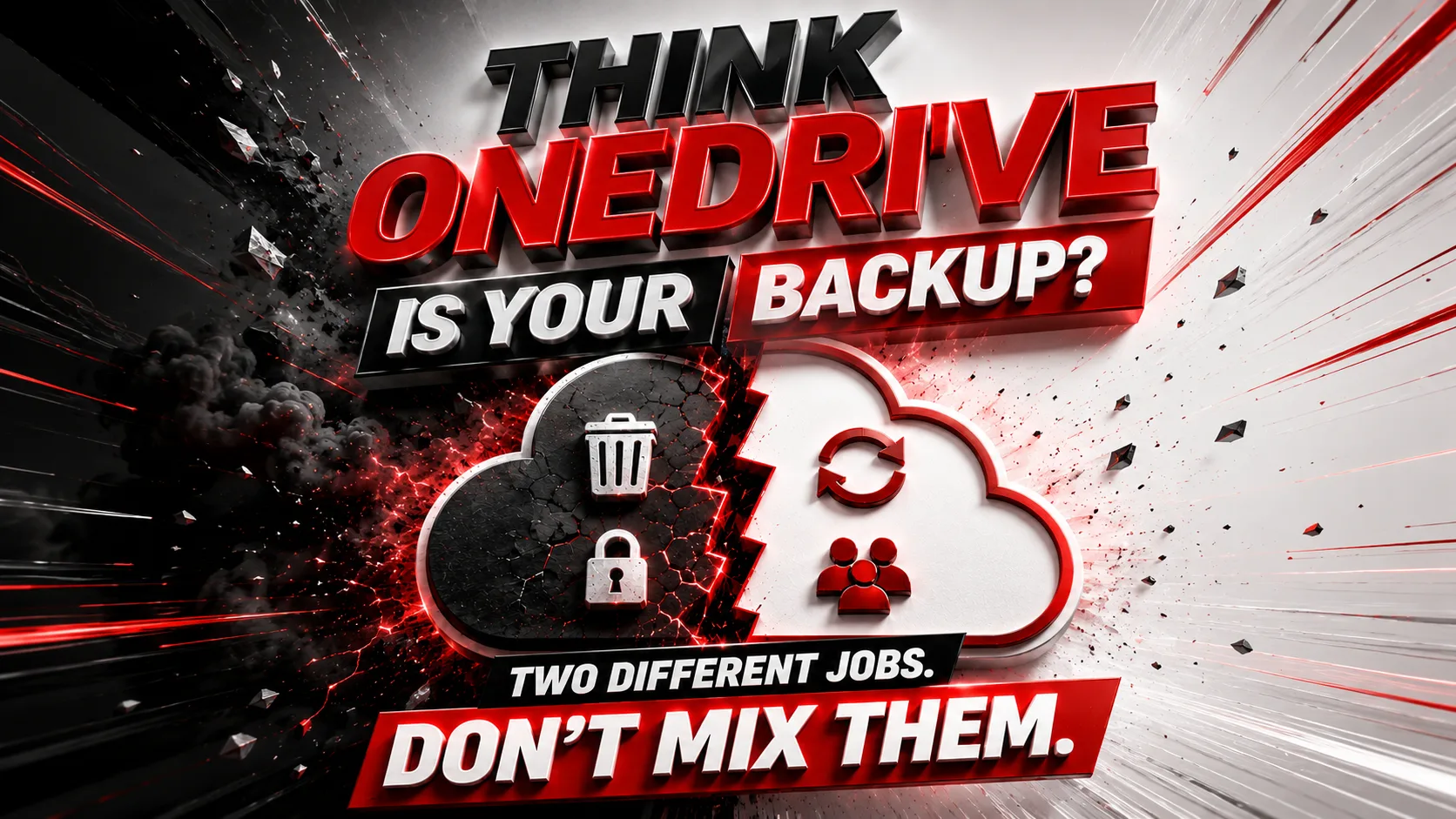
You’ve got OneDrive (or Google Drive or Dropbox) set up. Files sync across your laptop, phone, and the cloud. You feel safe. Then someone deletes a critical folder by accident. Or ransomware hits. Or a file gets corrupted and the bad version quietly overwrites everything.
Suddenly that “backup” isn’t there when you need it.
Here’s the truth most people learn the hard way: cloud storage and cloud backup are not the same thing. Treating them as interchangeable is one of the most common, and costly, mistakes businesses and individuals make.
Cloud Storage: Built for Access and Collaboration
Cloud storage services like OneDrive are designed so you can work on the same files from anywhere, share them easily, and keep devices in sync. They’re fantastic for daily productivity.
The key word is sync. Changes flow both ways. Delete a file on your computer and it disappears from the cloud (after a short recycle-bin window). A ransomware-encrypted file on your laptop? That encrypted version often syncs right up to OneDrive. Accidental overwrite? The new version becomes the live one everywhere.
OneDrive does offer version history and a “Restore your OneDrive” feature that can roll things back within a limited window (typically around 30 days for many accounts). That’s helpful, but it’s still convenience-focused recovery, not a true protection strategy.
Microsoft itself notes that customers remain responsible for their own data under the shared-responsibility model. Microsoft keeps the service running. Keeping your data recoverable is your job.
Cloud Backup: Built for Recovery When Things Go Wrong
True cloud backup works differently. It creates independent copies of your data on a separate schedule or continuously, stores multiple recovery points, and keeps those copies isolated from your live environment.
The flow is primarily one-way: data is copied to the backup location. Deleting or encrypting files on your machine does not automatically destroy the protected copies. Good backup solutions support longer retention, point-in-time restores, and often immutable or air-gapped storage that ransomware can’t easily touch.
In short:
“Can I get to my files right now?”
laptop <–> cloud · sync, both directions
“Can I get clean, usable data back after something bad happens?”
laptop –> vault · copy, one direction, isolated
Why Relying on OneDrive Alone Leaves You Exposed
Common failure scenarios include:
- Accidental or malicious deletion that clears the recycle bin or exceeds the retention window.
- Ransomware that encrypts files and syncs the damage to the cloud.
- Account compromise that wipes or locks the OneDrive contents.
- Limited version history. Older clean copies eventually disappear.
- Incomplete coverage. OneDrive typically protects only the folders you choose to sync, not full systems, applications, or other data locations.
Many people discover these gaps only after data is already gone.
What a Real Backup Plan Looks Like
Follow the classic 3-2-1 rule as a starting point:
The live working copy plus two backups. One copy is a single point of failure.
Local disk or appliance plus cloud, so one kind of failure can’t take out both.
Or offline and immutable, out of reach of whatever hits your main environment.
For businesses this usually means a combination of local backups for fast recovery plus secure cloud backup with tested restore processes, proper retention policies, and monitoring.
Cloud storage can still play a useful role in that plan, especially for collaboration, but it should never be the only line of defense.
The Bottom Line
OneDrive is excellent at keeping your working files accessible and shared. It is not a backup plan. Confusing the two is like assuming your checking account is the same as a safety-deposit box. One is for everyday use; the other is for protection when everyday use goes wrong.
If your business depends on its data (and whose doesn’t?), take a few minutes to check what is actually protected, how long versions are kept, and whether you can restore cleanly after a serious incident. A short conversation with an IT partner who understands both Microsoft 365 environments and proper backup architecture can close the gaps before they become expensive problems.
At Wizcom we’ve spent decades helping Detroit-area and remote businesses put the right protection in place: backup, disaster recovery, and the everyday IT that keeps everything running. When you’re ready to move from “I think we’re covered” to “I know we can recover,” we’re here.
Do you know what you could actually restore?
Book a free strategy session and we’ll walk through what is protected today, how long it is kept, and what a clean recovery would look like. No jargon, no sales pitch.
Book a Free Strategy SessionSources